
Getting started
Getting started
Getting started
LAFU Sales Reports for WooCommerce quietly e-mails CSV and PDF order summaries to whoever needs them, on the days of the month you choose. This page walks you through your first send in under five minutes.
Looking for the roadmap or support? Everything lives at hollahoop.app/lafu-sales-reports.
Before you start
You need:
- WordPress 5.8 or newer (tested up to 7.0).
- WooCommerce 7.0 or newer (HPOS / custom order tables fully supported).
- PHP 7.4+.
- An e-mail that already works on your site. If your test order confirmations arrive, sales reports will too.
1. Install the plugin
- In wp-admin, go to Plugins → Add new.
- Search for LAFU Sales Reports for WooCommerce and click Install Now, then Activate.
- A new menu appears at WooCommerce → Sales Reports.
2. Open the Sales Reports screen
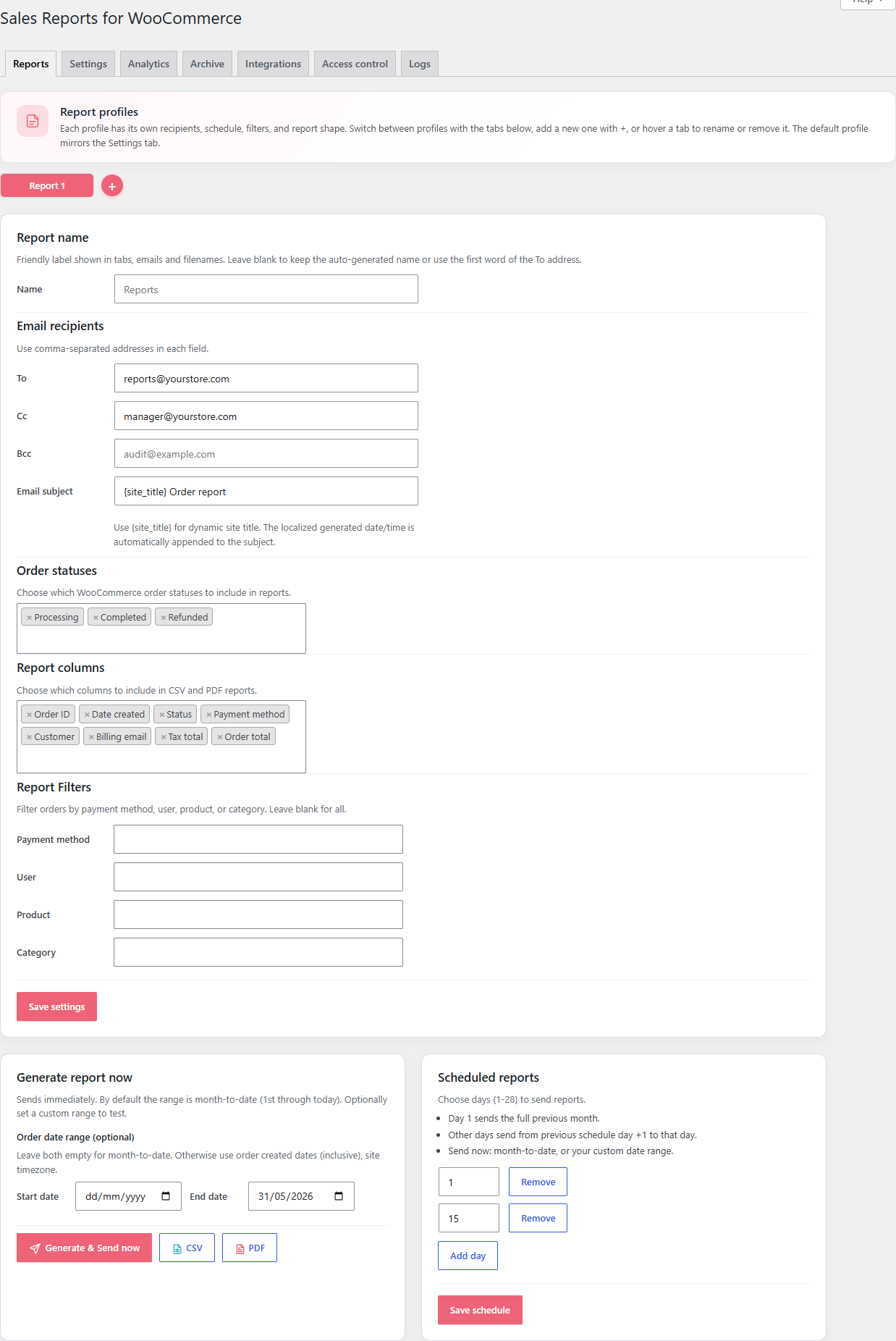
Go to WooCommerce → Sales Reports. You land on the Reports tab with one report profile called Default report ready to edit.
3. Fill in the essentials
In Email recipients, fill the To field with the address that should receive the report. Cc and Bcc are comma-separated and optional.
The Email subject defaults to {site_title} Order report. The date range is appended automatically — you do not need to add it yourself.
4. Pick the days of the month
Down on the right, under Scheduled reports, pick the days the report should be sent on (1–28). Two helpful patterns:
- Day 1 only — a full report for the previous calendar month.
- Day 1 and day 15 — a mid-month update and an end-of-month wrap-up.
Click Save schedule when you are happy.
5. (Optional) Send a test report immediately
Click Generate & Send now under Generate report now. By default this sends a report covering this month so far. To rehearse a specific range, fill in Start date and End date before clicking.
You are done
Reports will land in the inbox you chose on the days you picked. To confirm everything is wired up, open the Logs tab after the first scheduled day — every send is recorded there.
Where to go next
- Recipients and schedule — fine-tune who gets the report and when.
- Columns and filters — control what shows up in the CSV and PDF.
- Customising column and payment-method labels — rename columns and gateway names for nicer reports.
- Logs and import / export — review past sends and move settings between sites.
- Troubleshooting — fix the few things that occasionally trip people up.
- Pro features — what you unlock with LAFU Reports Pro.
Improve this page
Spot something confusing or outdated? Send the docs team a private note.