
Guides
Storage and delivery
Storage and delivery
Where does each generated report end up? This page explains both the e-mail path (always on) and the file storage path (configurable).
E-mail delivery
Reports are always e-mailed to the addresses in the report profile, using your site's standard wp_mail() function. This means:
- SMTP plugins are supported — install FluentSMTP or similar and reports will route through your transactional sender automatically.
- The CSV and PDF arrive as attachments. The body of the e-mail is short on purpose so the file is what the recipient opens.
- If sending fails, the entry in Logs says so and the error is recorded.
If your test orders e-mail correctly, sales reports will too.
File storage destinations
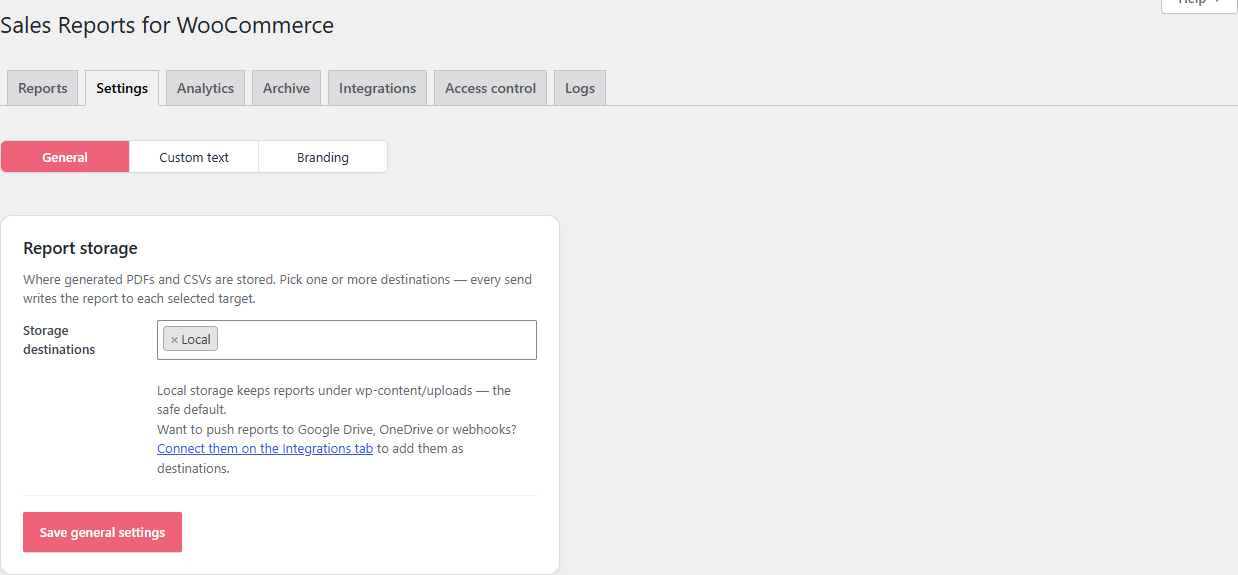
Under Settings → General → Report storage, you can choose where every report file is also kept after sending. The free plugin ships with one destination:
| Destination | Available in | What it does |
|---|---|---|
| Local | Free + Pro | Saves PDFs and CSVs under wp-content/uploads/lafu-sales-reports/reports/. This is the safe default. |
| Google Drive | Pro (milestone 2) | OAuth connection — drops every report into a Drive folder you choose. |
| OneDrive | Pro (milestone 3) | Same idea, for Microsoft 365 households. |
| Webhooks | Pro (milestone 3) | Outbound signed webhook for every generated report, so accounting systems can pick it up automatically. |
You can pick more than one storage destination — for example, e-mail + local + Google Drive. Every send writes to every selected destination.
Where local files go
The default Local destination writes to:
wp-content/uploads/lafu-sales-reports/reports/
The folder is created on activation and protected by a .htaccess deny rule. Pro's Archive tab gives you a UI to browse, re-download, and clean up these files. Without Pro, you can still find them on disk via SFTP or your hosting file manager.
Cleaning up old files
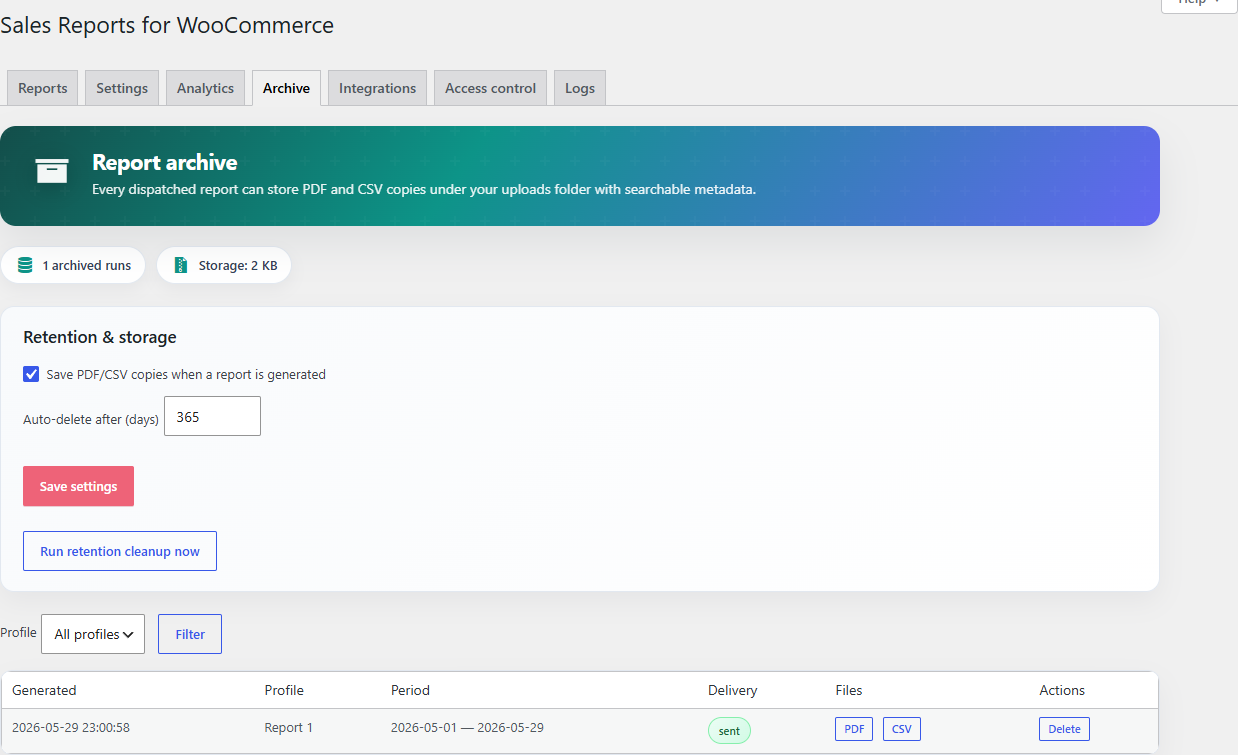
With LAFU Reports Pro active, the Archive tab adds:
- A retention setting (auto-delete after N days, default 365).
- A button to Run retention cleanup now.
- A searchable table of every archived run with re-download buttons.
Without Pro, retention is manual — files stay in the uploads folder until you remove them.
Disabling delivery temporarily
To pause a report without losing its settings, toggle the profile's Enabled switch off on the Reports tab. The next scheduled day is skipped and no e-mail is sent. Flip the switch back on whenever you are ready.
Improve this page
Spot something confusing or outdated? Send the docs team a private note.