
Guides
Recipients and schedule
Recipients and schedule
Every report profile carries its own recipients, subject line, and schedule. This page explains exactly what each field does.
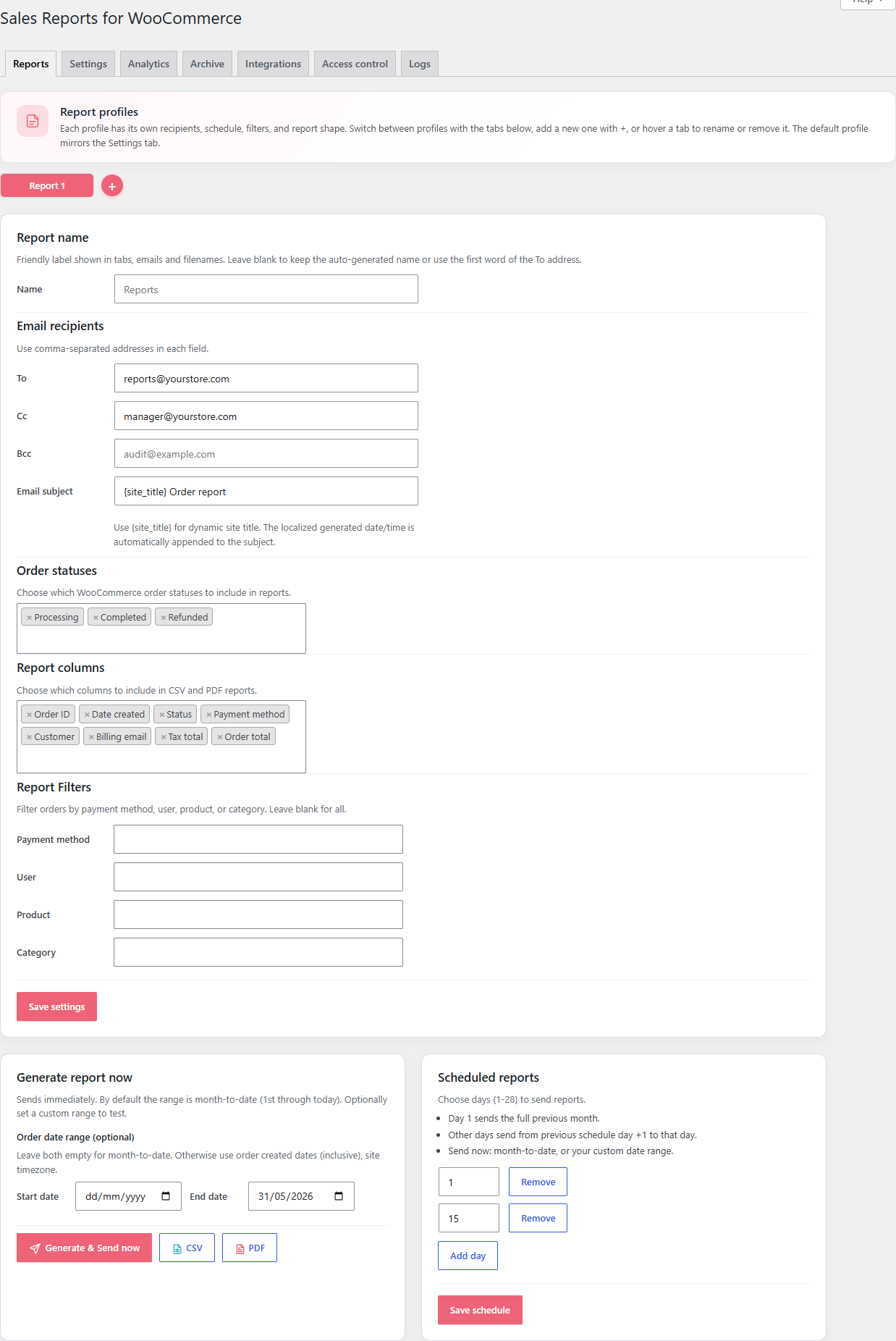
Email recipients
| Field | What goes in it |
|---|---|
| To | The main recipient. Required. Put more than one address by separating with commas: [email protected], [email protected]. |
| Cc | Optional. Comma-separated. Cc recipients are visible to everyone else. |
| Bcc | Optional. Comma-separated. Hidden from the other recipients — useful for archiving to a mailbox or to yourself. |
The address used for To when you first activate the plugin is your site's admin e-mail. Replace it with whoever should actually receive reports.
Email subject
The subject defaults to:
{site_title} Order report
You can write anything. Two tokens are supported:
{site_title}— your site name (whatever is set under Settings → General).- The localised date range is appended automatically to the end of the subject. You do not need to add it.
For a quick custom example:
Acme — daily sales report
…will arrive in the inbox as:
Acme — daily sales report (1–28 May 2026)
Schedule days (1–28)
Under Scheduled reports, click Add day and type a number between 1 and 28. 28 is the last allowed value so a monthly schedule still fires in February.
Two common patterns:
- Just
1— covers the entire previous calendar month. Day 1 always sends the previous month. 1and15— twice a month. Day 1 covers the previous month, day 15 covers from day 2 up to day 15.
You can mix as many days as you like (1, 8, 15, 22) and remove any day with Remove.
How the date range is calculated
Each scheduled send covers the last day a report was sent for this profile + 1 up to and including the day before the current send. In plain English:
- The first send of the month always covers the previous month.
- Every later send covers everything since the previous send.
Days are inclusive and use your site timezone (set under Settings → General → Timezone in wp-admin).
Manual sends
Click Generate & Send now under Generate report now any time you want a report on demand. Leave the date fields empty for month-to-date, or enter a Start date and End date for a custom range — handy for end-of-quarter or end-of-year exports.
Manual sends never affect the next scheduled send. The scheduler remembers what was sent automatically separately from what you sent by hand.
Improve this page
Spot something confusing or outdated? Send the docs team a private note.