
Guides
Logs and import / export
Logs and import / export
Two small tools live on the Logs tab: a history of every report this site has sent, and a way to save / load settings as a JSON file.
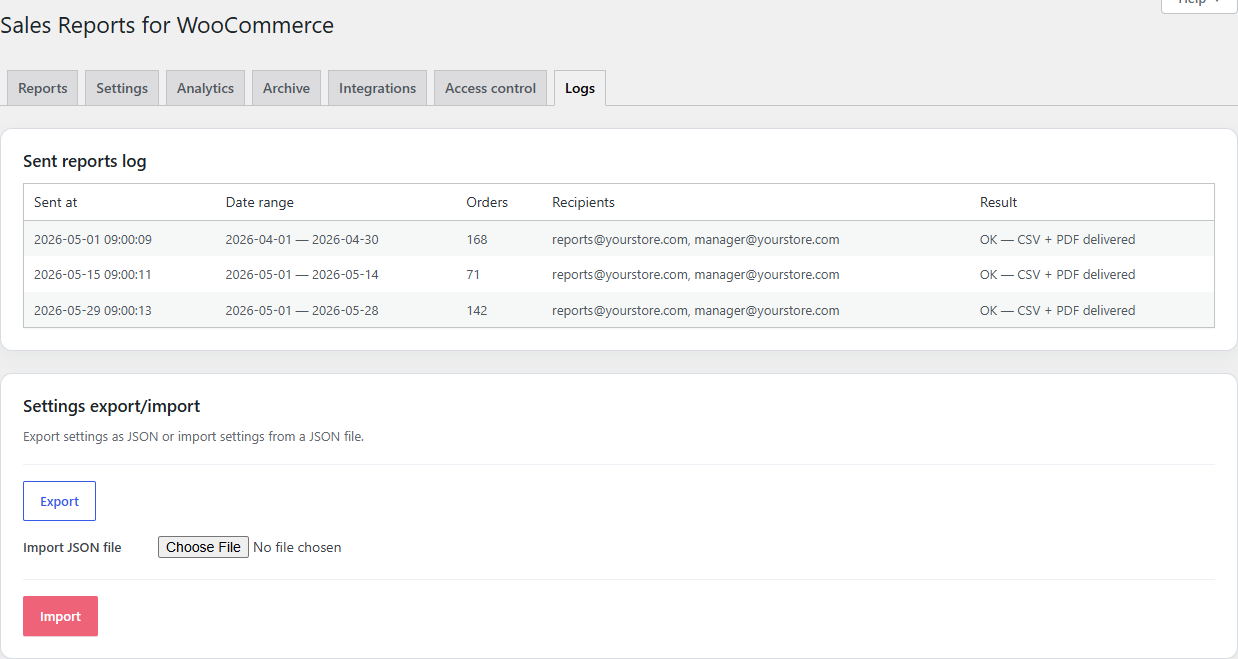
Sent reports log
Every successful and failed send is recorded with:
- Sent at — date and time in your site timezone.
- Date range — the orders that were covered.
- Orders — how many orders ended up in the report.
- Recipients — every address the report was e-mailed to.
- Result —
OK — CSV + PDF delivered, or an error message if something went wrong.
Newest sends sit at the top. Use this to confirm that an automated send actually fired.
The free plugin keeps the most recent ~50 sends. Older entries roll off so the option does not grow indefinitely. LAFU Reports Pro keeps every send permanently in a dedicated database table and adds a re-download button per row.
Settings export
Click Export under Settings export / import to download a lafu-srfw-settings-<timestamp>.json file containing:
- All report profiles (recipients, schedule, columns, filters, custom text).
- Plugin settings (storage destinations, column / payment-method overrides).
Sensitive runtime data (logs, archived files, OAuth tokens) is not included so the file is safe to commit to a private repo or share with your team.
Settings import
To copy your configuration to another site:
- On the source site, click Export and save the JSON file.
- On the destination site, install + activate the plugin.
- Go to WooCommerce → Sales Reports → Logs → Settings export / import.
- Choose your file under Import JSON file and click Import.
The destination site adopts the settings exactly. Existing settings are overwritten, so import on a fresh site or back up first with Export.
This is also the quickest way to clone a working configuration between staging and production. Export on staging, import on production, double-check the recipient e-mails.
Common operations
| You want to… | Do this |
|---|---|
| See the last 50 sends | Open Logs. |
| Confirm yesterday's automated send fired | Open Logs, look at the most recent row. |
| Move settings from staging to production | Export on staging, Import on production. |
| Reset to a known-good state | Keep a working JSON in version control; re-import any time. |
| Investigate a failed send | Look at the Result column for the error message. |
Improve this page
Spot something confusing or outdated? Send the docs team a private note.